Bank Statement PDF to Excel: Convert, Clean Up and Check
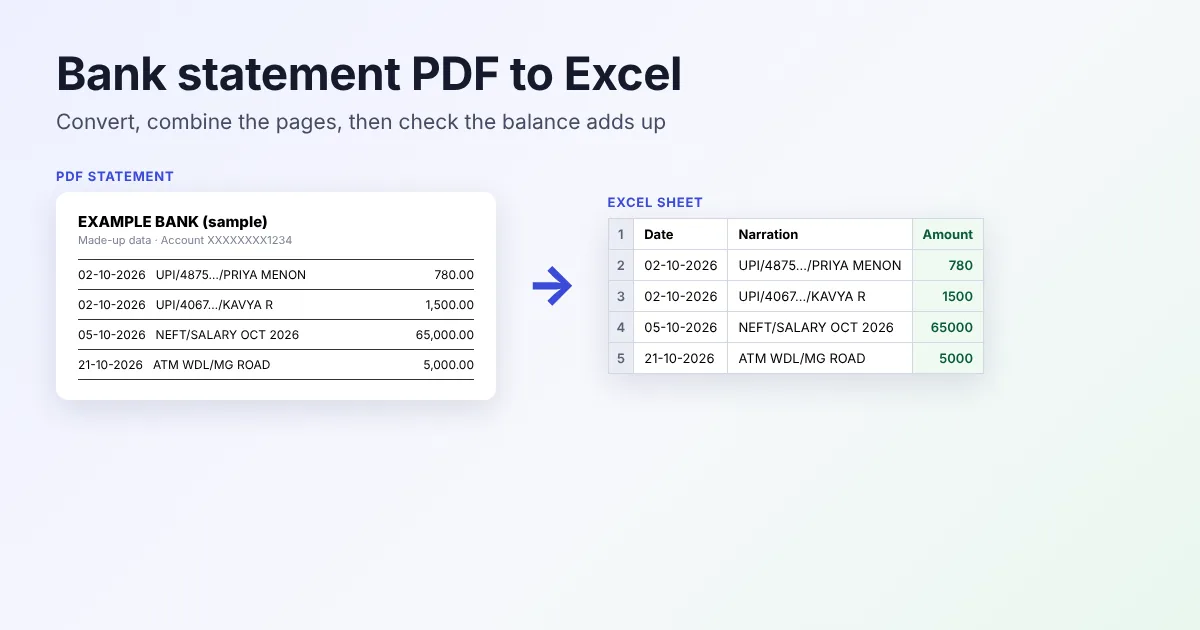
Copying transactions out of a statement by hand is slow and easy to get wrong. Converting the bank statement PDF to Excel gives you rows you can sort, filter and total, whether you are tracking expenses, preparing figures for your tax return or sending a loan agent a summary. The conversion itself takes a minute. What needs more care comes after: joining the pages, fixing the columns that come out as text, and proving that no transaction went missing.
This guide uses our free PDF to Excel converter. We tested it on a made-up four-page statement with 60 transactions, and the results below come from that test.
Before you start: three quick checks
- Is it password-protected? Statements sent by email often are. The converter cannot open a locked file, so you will see "Conversion failed. The file may be damaged or password-protected." Remove the password first (step 1 below). You need to know the password; nothing can skip that.
- Can you select the text? Open the PDF and try to highlight a narration with your mouse. If you can, it is a text PDF and converts well. If the whole page highlights like a picture, it is a scan. Run OCR PDF on it first, and expect more cleanup afterwards.
- Does the table have grid lines? Look for lines between the rows and columns. This one detail decides how clean your Excel file will be, as the test further down shows.
Convert a bank statement PDF to Excel in 4 steps
- Unlock the statement. Open Unlock PDF, select the file, type the password and download the unlocked copy. This step runs in your browser, so the password is not sent anywhere. Our guide to removing a password from your own PDF has more detail.
- Optional: put several months together. If you need a full year, combine the unlocked monthly files with Merge PDF so you convert once instead of twelve times. Keep the result under 20 MB, which is the converter's upload limit.
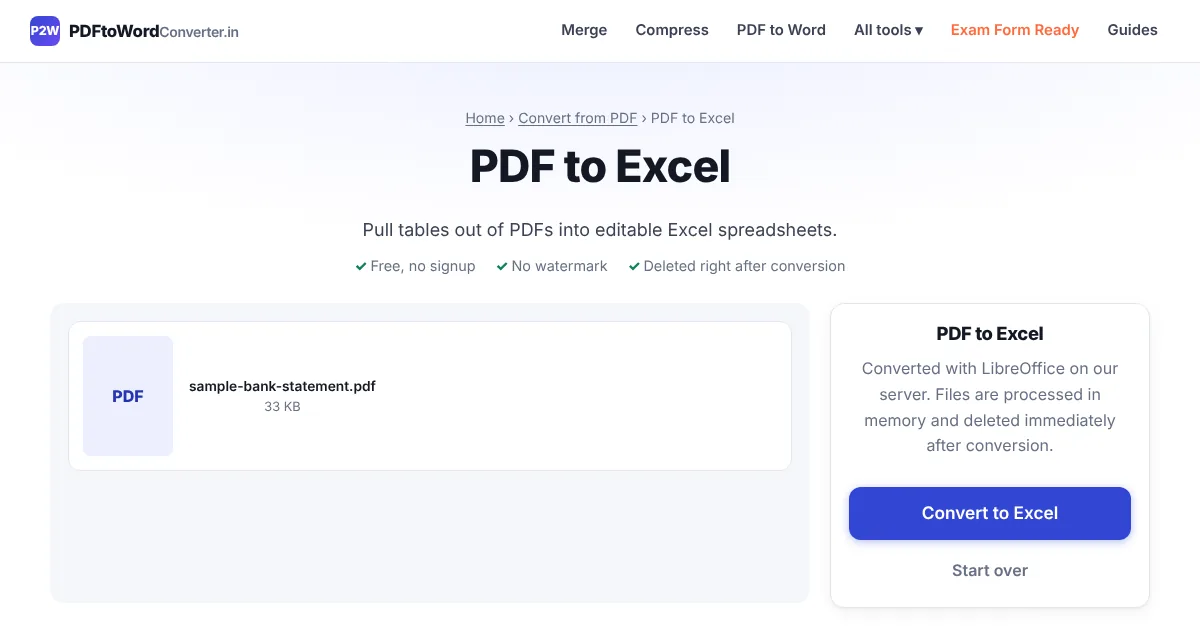
- Convert. Open PDF to Excel, select the unlocked file and click Convert to Excel. The converter runs on a free server that sleeps when idle, so the first conversion can take 30 to 60 seconds while it wakes up.
- Download the .xlsx file and open it in Excel, Google Sheets or LibreOffice Calc.
What you get: one sheet per page
The converter looks for tables on every page. It tries ruled tables (ones drawn with lines) first and falls back to text alignment when it finds none. Each table it finds becomes its own sheet, named like Page 1 Table 1, with the first row in bold.
A few details matter for statements:
- Amounts such as
1,25,000.00are stored as real numbers. Commas, the ₹ sign and "Rs." are removed first, so Indian digit grouping is not a problem. - Anything with letters attached stays as text. A balance written as
47,470.75 Crwill not add up until you fix it (see the cleanup section). - Whole numbers that start with 0, like some account or cheque numbers, are kept as text so the leading zero is not lost.
- Long narrations that wrap onto two or three lines inside one table cell stay in one Excel cell, with line breaks.
- If no table is found anywhere, you get a single sheet called Text listing every line of the PDF with its page number. That usually means the PDF is a scan, or it has no table structure the converter can read.
Our test: grid lines make the difference
We created a fictional statement for "Example Bank" with 60 UPI, NEFT and ATM entries over four pages, then made two versions: one with grid lines around every cell and one without any lines. Both went through the same conversion code the site uses.
- With grid lines: 4 sheets and 64 rows, which is exactly 60 transactions plus the repeated header on each page. Every withdrawal and deposit came out as a number, and the account details printed above the table were not mixed in.
- Without grid lines: 194 rows for the same 60 transactions. Each wrapped narration spilled into one or two extra rows, the column headings were split across three rows, and the account details at the top of page 1 ended up inside the first sheet.
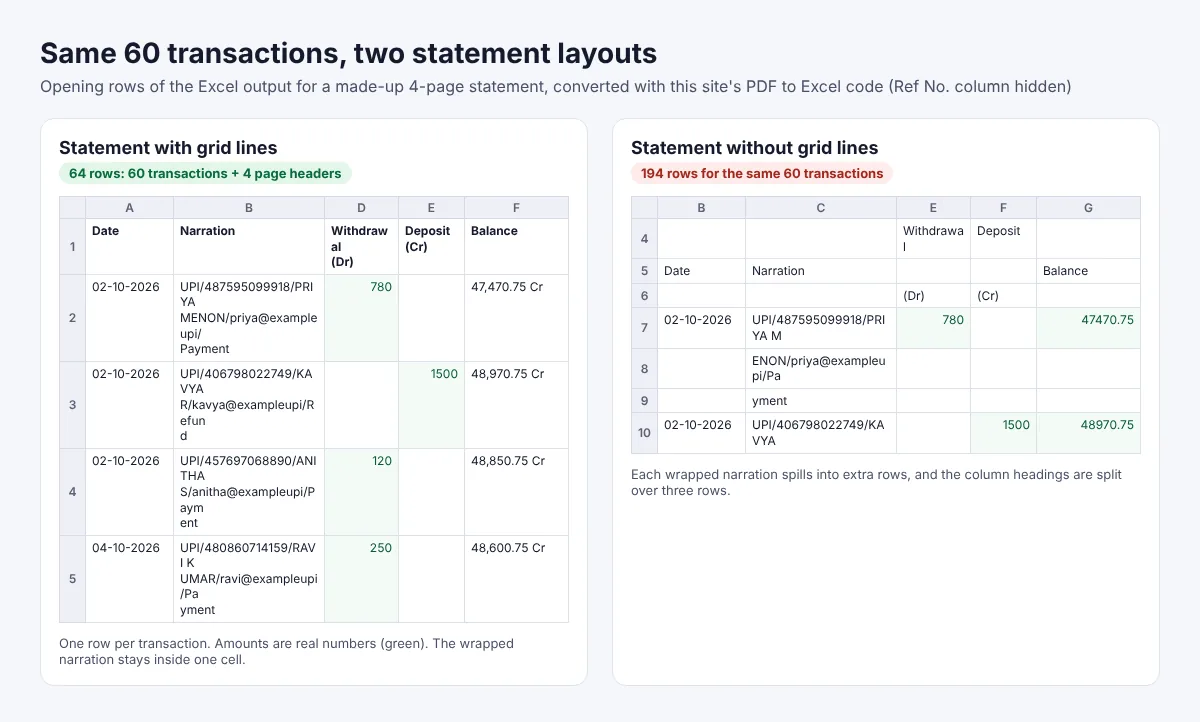
If your statement has no grid lines, check whether your net banking offers the statement as an Excel or CSV download. When that option exists it is cleaner than converting any PDF. If it does not, convert anyway and expect to join the split narration rows by hand, or test a single page first with Extract Pages to see what you are dealing with.
Clean up the sheet in Excel
These steps assume the layout from our test: Date in column A, Narration in B, reference number in C, withdrawals in D, deposits in E and balance in F. Adjust the letters to match your file.
- Put all pages on one sheet. Add a new sheet and paste the rows from each page sheet below one another. Then filter column A, tick only "Date" (the repeated heading), delete those rows and clear the filter. Put one heading row back at the top.
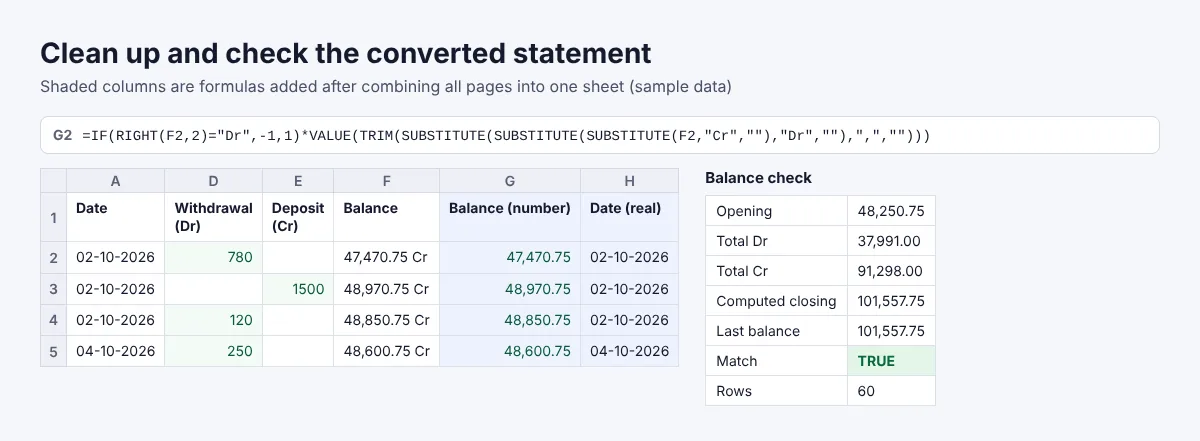
- Turn the balance into a number. In G2, enter
=IF(RIGHT(F2,2)="Dr",-1,1)*VALUE(TRIM(SUBSTITUTE(SUBSTITUTE(SUBSTITUTE(F2,"Cr",""),"Dr",""),",","")))and fill it down. Credit balances become positive and debit balances negative. - Fix text dates. If the dates sit on the left of the cell, Excel is treating them as text. For a DD-MM-YYYY date,
=DATE(RIGHT(A2,4),MID(A2,4,2),LEFT(A2,2))gives a real date you can sort by month. - Flatten the narration.
=SUBSTITUTE(B2,CHAR(10)," ")replaces the line breaks with spaces. Where the bank's PDF broke a word in the middle, you will see a stray space, such as "Paym ent", but names and UPI IDs stay searchable. - Show reference numbers in full. UPI references are 12 digits, and Excel's General format switches to exponential notation (like 4.87595E+11) for numbers with 12 or more digits, according to Microsoft's guide. Select the column, open Format Cells, choose Number and set 0 decimal places. The digits are not lost, since Excel keeps up to 15.
Check that nothing went missing
A converted statement looks complete even when a row has dropped out, so do this check every time. It takes two minutes:
- Type the opening balance from the PDF into a spare cell.
- Add the total deposits and subtract the total withdrawals:
=opening+SUM(E2:E61)-SUM(D2:D61), using your own last row. - Compare the result with the closing balance printed on the statement, or with the last value in your balance column.
- Run
=COUNT(D2:D61)+COUNT(E2:E61). On a statement where each row is either a withdrawal or a deposit, this should equal the number of transactions.
In our test, opening balance ₹48,250.75 plus ₹91,298.00 in deposits minus ₹37,991.00 in withdrawals gave ₹1,01,557.75, which matched the closing balance, and the count came to 60. If your numbers do not match, the usual cause is an amount stored as text, because SUM skips text cells. Look for cells that sit on the left, or that carry a "Dr", "Cr" or bracket.
Common problems and fixes
- "Conversion failed" straight away: the file is almost always still password-protected. Unlock it first and convert the unlocked copy.
- "File too large": the limit is 20 MB. Convert fewer months at a time, or split the file with Split PDF.
- Only a "Text" sheet: no table was detected. If the statement is a scan, run OCR PDF first.
- Narrations spread over several rows: the statement has no grid lines. Join the pieces by hand, or look for an Excel or CSV download from your bank.
- Totals look too small: some amounts are text. Find them with the COUNT check above.
Privacy: what happens to your statement
Unlock PDF, Merge PDF, Extract Pages and OCR PDF all run in your browser. PDF to Excel is different: the file is uploaded to our conversion server, processed in a temporary folder and deleted as soon as the Excel file is sent back. If you would rather not upload your account number at all, remove the account details at the top of the first page with Redact PDF before converting. In our test, the version with grid lines left the account details out of the Excel file anyway, but the version without grid lines included them.
FAQ
Is it free? Yes. There is no signup and no watermark on the Excel file.
Will it work with my bank? The converter does not use bank-specific templates. It reads the table layout, so what matters is whether the statement is a text PDF and whether it has grid lines. Try one page first if you are unsure.
Can I convert a credit card statement the same way? Usually, yes. The same steps work for any statement laid out as a table, as long as it is a text PDF rather than a scan.
Why are there several sheets? Each table on each page becomes its own sheet. Combine them as shown in the cleanup section.